
Best forchecking in on your dog while away
50K+ Reviews
App Connected
Cameras & Monitoring
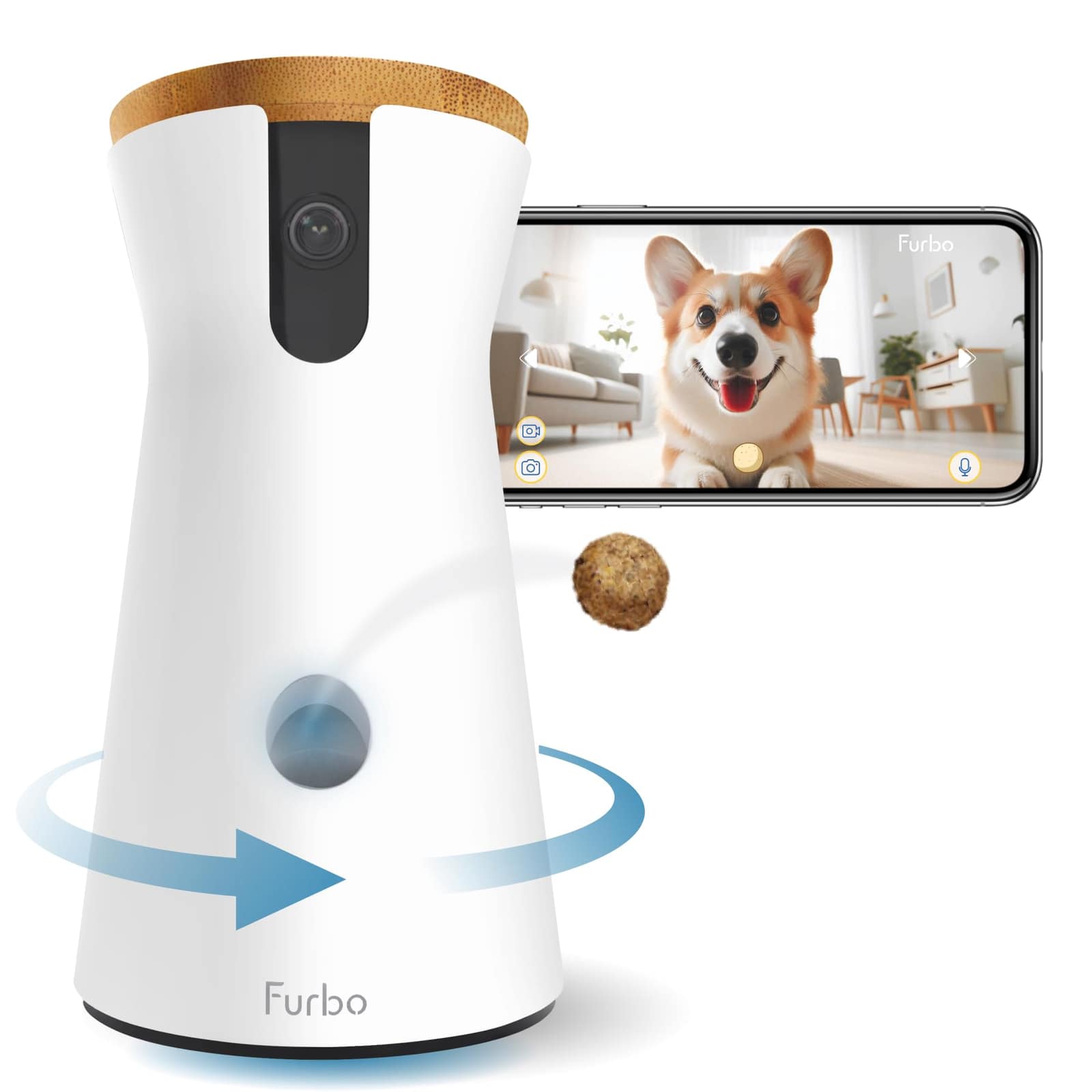
Furbo 360° Dog Camera
See, talk, and toss treats to your dog from anywhere.
4.3 · 50K reviews
8.2SmartPaws Score
How?Typically$69–$210In Stock
SmartPawsGuides, comparisons & trusted resources — Guides & trusted resources — always independent.
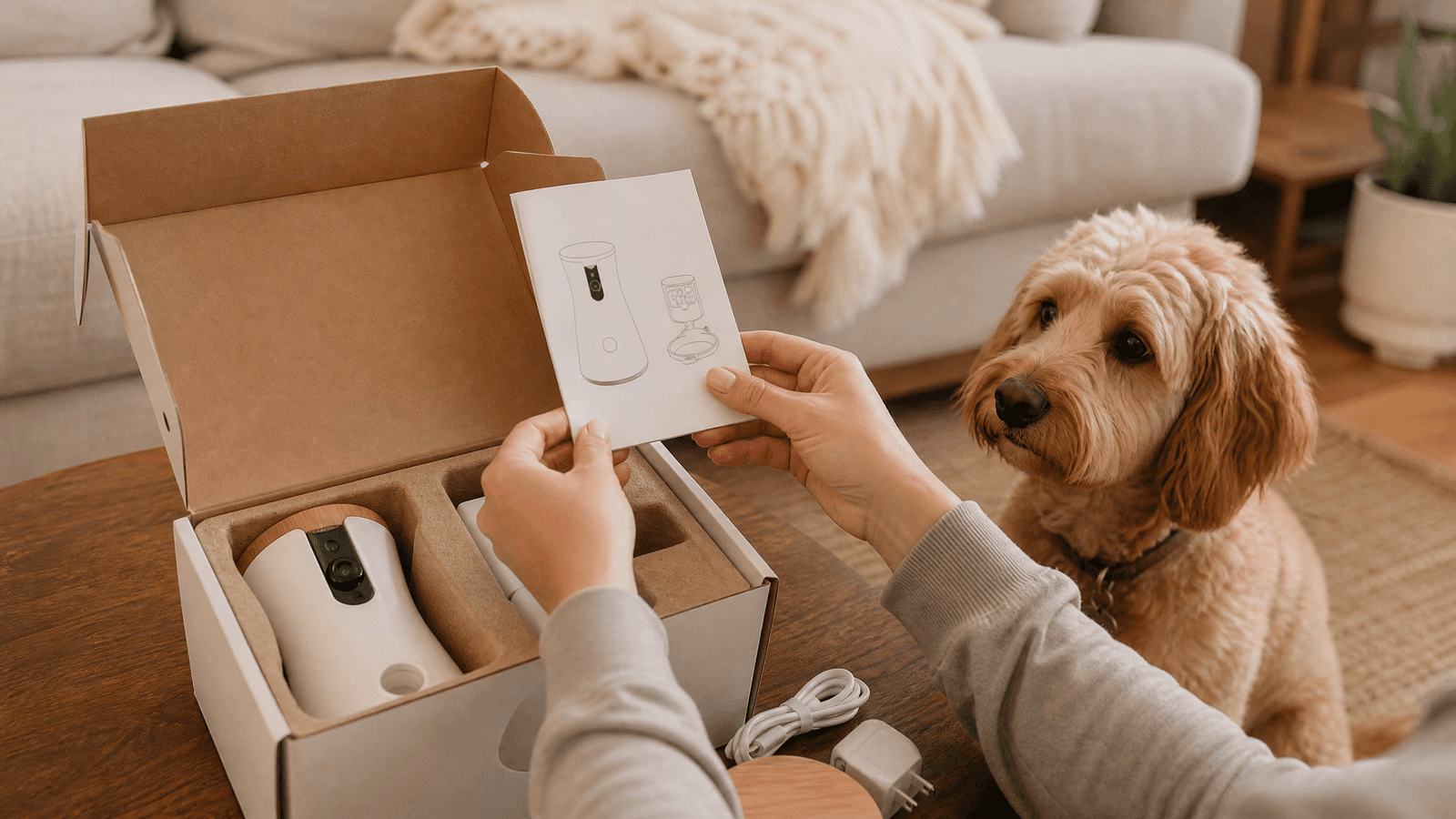
From unboxing to your first treat toss, we guide you through setting up the Furbo 360° Dog Camera, covering WiFi, app pairing, placement, and troubleshooting common hurdles.
This article contains affiliate links. We may earn a commission if you purchase through our links, at no extra cost to you.
Bringing a new piece of smart pet tech into your home should be exciting, not frustrating. The Furbo 360° Dog Camera, with its treat-tossing capabilities and 360-degree view, is designed to keep you connected with your pet from anywhere. But how easy is it to get this innovative device up and running? This comprehensive guide will walk you through the entire setup process, from unboxing to your first treat toss, addressing common questions and potential issues along the way. We'll cover everything from WiFi connectivity and app pairing to optimal placement and troubleshooting, ensuring you can enjoy peace of mind and playful interactions with your dog without a hitch.
The journey to connecting with your pet begins the moment you open the box. Inside, you'll typically find the Furbo 360° Dog Camera unit itself, a USB-C power adapter, and a USB-C cable. Unlike some older models, the Furbo 360° often comes with a USB-C to USB-C cable, emphasizing modern connectivity. Before you start, ensure all components are present and undamaged. The design is sleek and compact, making it easy to integrate into your home decor. The initial physical setup is straightforward: simply plug the USB-C cable into the Furbo and then into the power adapter, and finally, into a wall outlet. The device will power on automatically, indicated by a changing status light.
Once your Furbo is plugged in, the status light will illuminate. It typically starts as a white light, then transitions to a blinking yellow light, indicating it's ready for setup. While the Furbo is booting up, download the official Furbo app from the Apple App Store or Google Play Store. Search for 'Furbo Dog Camera' to ensure you get the correct application. The app is your primary interface for controlling the camera, receiving alerts, and interacting with your pet.
Open the Furbo app and follow the prompts to create a new account or log in if you're a returning user. Account creation is a quick process, usually requiring an email address and password. Ensure you use a strong, unique password to protect your pet's privacy and your home security. Once logged in, the app will guide you to add a new Furbo device.
This is often the most critical step. The Furbo 360° requires a stable 2.4 GHz Wi-Fi connection. While many modern routers offer both 2.4 GHz and 5 GHz bands, the Furbo is designed to work optimally on the 2.4 GHz frequency, which offers better range and penetration through walls.
Where you place your Furbo 360° significantly impacts its performance. Consider the following:
Once connected, it's time for the fun part!
Encountering connection issues is frustrating, but understanding the Furbo's status lights can help diagnose the problem:
If you repeatedly see an 'Unable to Connect' error, ensure your Wi-Fi password is correct, your router is broadcasting a 2.4 GHz network, and there are no firewalls or VPNs interfering with the connection. A hard reset of the Furbo (using a pin to press the reset button on the bottom) can sometimes resolve persistent issues, but this should be a last resort as it clears all settings.
Frequent disconnections can disrupt your ability to monitor your pet. To improve Wi-Fi stability:
If the Furbo app is freezing or crashing, try these steps:
Cameras & Monitoring
See, talk, and toss treats to your dog from anywhere.
The ultimate treat-tossing camera for pet parents who want to stay connected and entertained. Its 360° view ensures no corner of your home is missed, and the two-way audio allows for seamless communication.
Overall, the Furbo 360° Dog Camera setup process is remarkably user-friendly. The app provides clear, visual instructions that guide you through each stage, making it accessible even for those who aren't tech-savvy. The most common sticking points revolve around Wi-Fi connectivity, primarily ensuring you're on a 2.4 GHz network and entering the correct password. However, Furbo's extensive online support and in-app troubleshooting tips are highly effective in resolving these minor hurdles. With a little patience and attention to detail, most users will find themselves tossing treats and monitoring their pets within minutes of unboxing. The initial effort is well worth the peace of mind and joy this smart device brings to both pets and their parents. For more insights into smart pet care, check out our GPS Tracker Buying Guide.
The Furbo 360° Dog Camera delivers on its promise of keeping you connected with your furry family members. While the setup isn't entirely without its potential snags, the process is generally intuitive and well-supported. By following this guide and understanding the common troubleshooting steps, you can ensure a smooth installation and quickly start enjoying all the features this innovative pet camera has to offer. It's a valuable investment for any pet parent looking to enhance their bond with their dog, even when they're away.
Keep reading

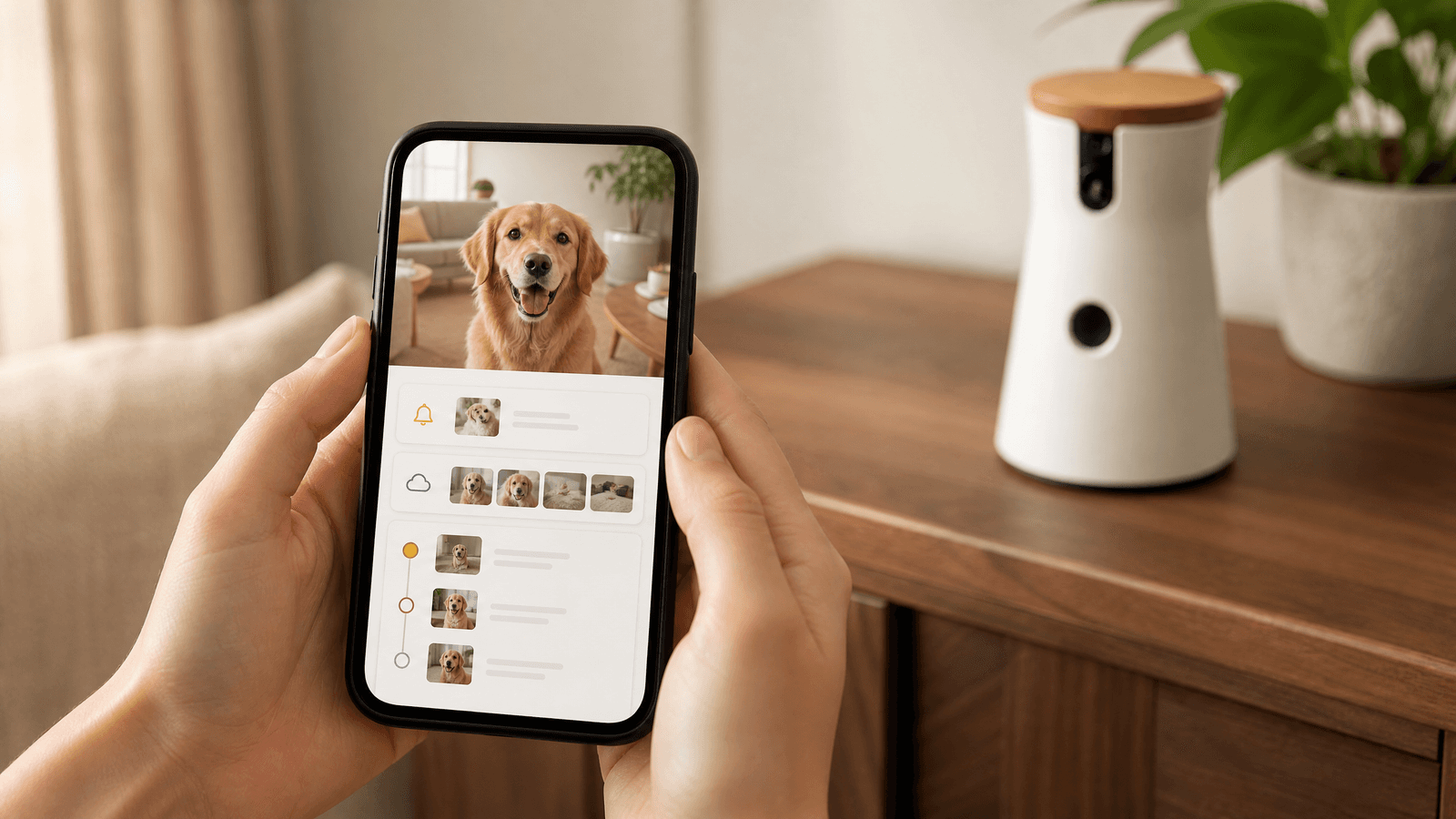
The Furbo 360° Dog Camera offers peace of mind, but does its premium subscription, Furbo Dog Nanny, justify the $7 monthly cost? We break down the free versus paid features to help you decide if it's a worthwhile investment for your pet's safety and your convenience.
Read guide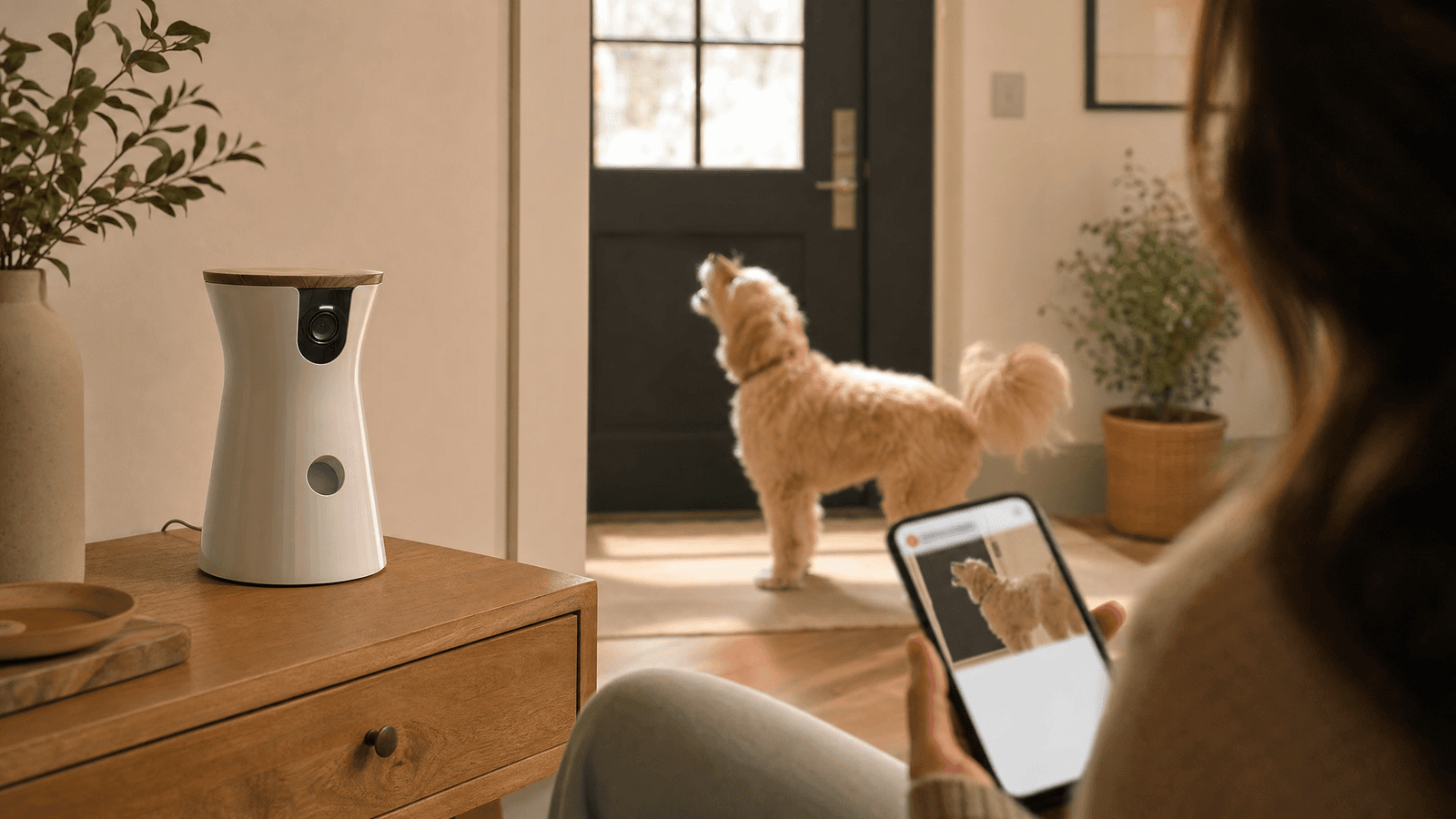
The Furbo 360° Dog Camera promises peace of mind with its intelligent barking alerts. But how reliable are these notifications? We dive into the accuracy, sensitivity, and customization of Furbo's bark detection to help you understand if it's the right fit for your home.
Read guide